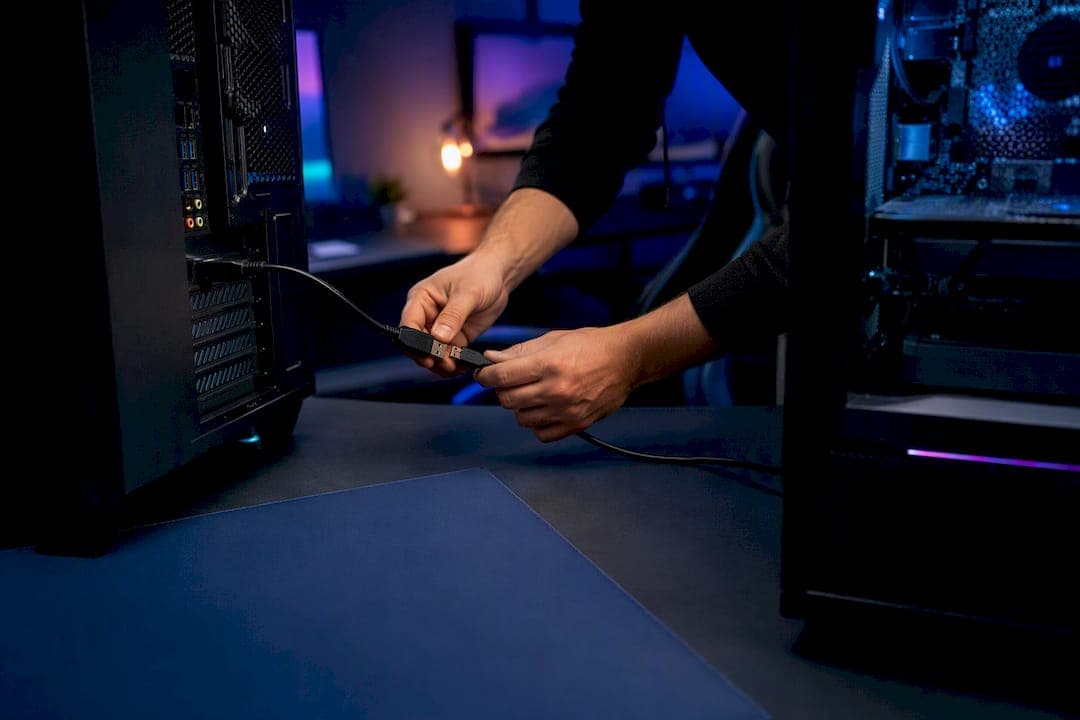
Cheat setup support means direct, hands-on help installing and configuring undetected cheats, HWID spoofers, and DMA hardware, not generic troubleshooting forums. If you're stuck mid-install, the fastest path forward is preparing your second PC and opening a live Discord session with a support team that flashes and tests this hardware daily. Midnight-market's team, backed by author Fonics, runs that exact process and backs the hardware with a warranty.
TL;DR:
- Proper hardware preparation, including a second PC, USB cable, and backups, is crucial to avoid failed DMA install attempts and system instability.
- Disabling virtualization, Memory Integrity, and adjusting BIOS settings are essential steps for DMA hardware initialization, with static grounding recommended before opening the case.
- Drivers and firmware flashing must strictly be performed on the second PC via trusted sources, using verified cable connections and confirming device recognition before proceeding.
- Verifying correct device recognition, USB 3.x speed, and passing speed tests on the second PC ensures DMA hardware functions properly before software configuration.
- Running drivers, flash tools, and firmware exclusively on a second PC limits detection risk, and live Discord support with warranty coverage helps troubleshoot hardware issues efficiently.
Table of Contents
- Pre-Setup Checklist: Hardware, Backups, and Safety First
- How Do You Install DMA Hardware on the Gaming PC?
- Second-PC Setup: Drivers, Firmware Flashing, and DNA ID
- Verification Checklist and Fast Fixes for Common Errors
- Software Configuration Needed After Hardware Setup
- What Are the Legal Risks of Using Game Cheats?
- How Do You Test Cheat Functionality After Installation?
- Security Precautions and Risks With DMA Hardware Cheats
- Why the Two-PC Rule and Live Testing Actually Matter
- Get Live Setup Help and Hardware Warranty Support
- Sources
Pre-Setup Checklist: Hardware, Backups, and Safety First
Most failed installs trace back to one thing: skipping prep. Before you touch a screwdriver, get your gear and permissions sorted so you're not troubleshooting blind halfway through.
Here's what you need on hand before starting:
- A second PC with a free USB 3.x port (this hosts all DMA drivers and firmware tools, never your gaming rig)
- An open PCIe slot on your Gaming PC for the DMA card
- A quality USB-C data cable rated for USB 3.0 speeds, not a charge-only cable
- A spare USB drive loaded with driver installers, in case network access gets flaky mid-setup
- Full drive backup or a fresh Windows staging account if you're doing a HWID rewrite alongside the hardware install
Account separation matters more than people think. If you're rewriting your HWID at the same time, do it on a clean staging profile rather than your daily-driver Windows account, so a botched rewrite doesn't strand your existing licenses or saved configs.
Workspace safety isn't optional either. Cold-boot the Gaming PC (full shutdown, not sleep), switch off the PSU at the wall, and discharge any static by touching the case frame before opening it. Confirm the DMA card's kill switch is accessible and working before you start connecting cables.
Finally, clear an hour of uninterrupted time, know your BIOS password if one's set, and have your phone ready to screenshot Device Manager at each stage. Support teams move faster when you can show them exactly what your system sees, not describe it from memory.
How Do You Install DMA Hardware on the Gaming PC?
Physical installation is where most first-timers rush, and rushing is exactly what causes a fried card or a system that won't post. Slow down here.
- Cold boot and open the case. Power down fully, unplug the PSU, and ground yourself before touching internal components.
- Seat the DMA card in a free PCIe slot. Line it up carefully, press evenly until it clicks, and fasten the bracket screw so it doesn't shift under vibration.
- Check the kill switch. Confirm it's set correctly before connecting anything. This switch is your emergency cutoff if something behaves unexpectedly during testing.
- Connect the USB-C data cable. Run it from the DMA card to a USB 3.x port on your second PC. This is the only cable path management software ever touches. Installation and DATA-cable connection follow the same physical setup sequence documented by DEXAIM, including verifying the card in Device Manager.
- Enter BIOS/UEFI on the Gaming PC. Disable virtualization (VT-d), disable IOMMU, and consider setting PCIe to Gen1 if your card's documentation recommends it for stability.
- Check NX-bit / Execute Disable Bit settings if your card's firmware notes call for it. Not every board needs this changed, so check your specific hardware notes first.
- Boot into Windows and disable Memory Integrity. Go to Windows Security, Device Security, Core Isolation, and turn it off along with Hyper-V before your first session. Skipping this step is one of the most common reasons a DMA card fails to initialize correctly, since Memory Integrity and virtualization settings directly interfere with DMA access.
- Look for LED confirmation. Most cards show a status light once powered and cabled correctly. No light usually means a seating issue or a dead port, not a firmware problem.
Once the card is seated, cabled, and your Gaming PC's virtualization settings are off, power the Gaming PC down again and shift all remaining work to the second PC. Nothing else gets installed on the machine you actually play on.
Pro Tip: Take a photo of your BIOS settings before changing anything. If a driver conflict forces a rollback later, you'll want to restore the exact original state, not guess at it.
Second-PC Setup: Drivers, Firmware Flashing, and DNA ID
The entire reason this method works is segregation: your Gaming PC never touches a DMA driver, a flashing tool, or a firmware file. All of that lives exclusively on the second PC. This isn't a suggestion, it's the backbone of a low-detection setup, since keeping DMA management software confined to a second machine limits what your anti-cheat-monitored PC ever has to expose.
Install drivers on the second PC in this order:
- FTDI FT601 (the USB 3.0 bridge driver your card communicates through)
- WCH CH34x / CH343 / CH341 family drivers, depending on your card's specific bridge chip
Both driver families show up under Universal Serial Bus controllers once installed correctly, and Device Manager should list the FTDI FT601 bridge by name if the connection is solid.
With drivers in place, open a flashing tool like Kilmu DMA Tool. Select your firmware .bin file, pick the correct FPGA target (commonly XC7A35T, XC7A75T, or XC7A100T depending on your card), and click Flash. Kilmu's flashing workflow walks through file selection and target matching in the same sequence.
If you're planning custom firmware, retrieve your card's DNA ID first by selecting CH347 in the tool and choosing "Retrieve DNA ID." Stick to trusted firmware authors and keep strict version control. Once flashed, run a speed test through Kilmu or an equivalent tool. Speed test results vary by card and firmware, so compare against your specific card's documented range rather than a generic number.
Pro Tip: Never flash firmware over a laggy remote connection. A dropped flash mid-write can brick the card. Do this step locally on the second PC.
Verification Checklist and Fast Fixes for Common Errors
Before you call anything "done," confirm three things: Device Manager shows the right device, the port registers as USB3, and your speed test passes.
- Open Device Manager and look for "FTDI FT601 USB 3.0 Bridge Device" under Universal Serial Bus controllers
- Confirm the port is recognized as USB 3.x, not falling back to USB 2.0 speeds
- Run a speed test and compare results against your card's documented range
If drivers won't install, cold boot the second PC and reinstall as administrator. Try a different USB 3.x port and swap the cable, since a charge-only cable is a frequent, invisible cause of failure. Check whether driver signature enforcement is blocking install, particularly on newer Windows builds.
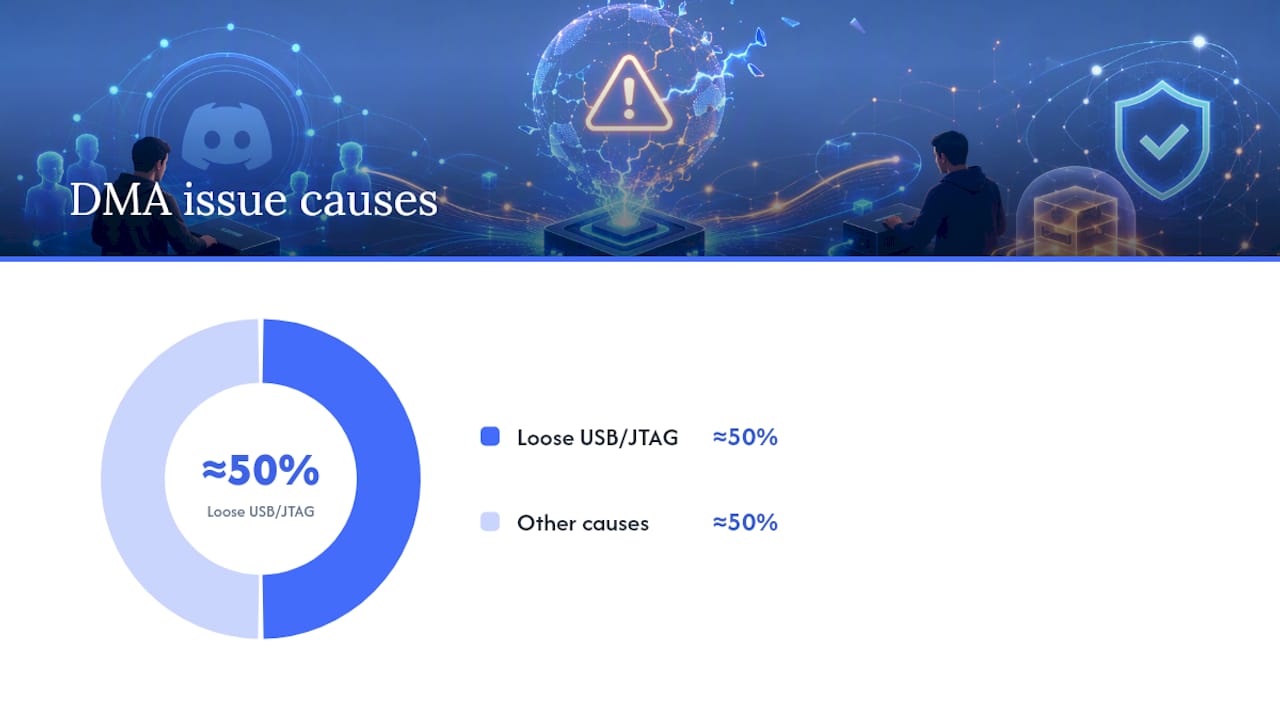
If flashing fails, confirm the JTAG connection is seated correctly, retry with diagnostic firmware, and check your flashing tool's logs for the exact error rather than guessing. Roughly half of DMA setup issues trace back to loose USB or JTAG connections rather than defective hardware, so recheck physical seating before assuming the card itself is bad.
If BIOS changes don't stick or the system won't post afterward, roll back to your saved settings and reapply changes one at a time. When nothing works, stop and preserve evidence: export your Device Manager list, screenshot the Kilmu speed log, and capture your DNA ID screen before contacting support. Detailed logs cut resolution time dramatically.
Software Configuration Needed After Hardware Setup
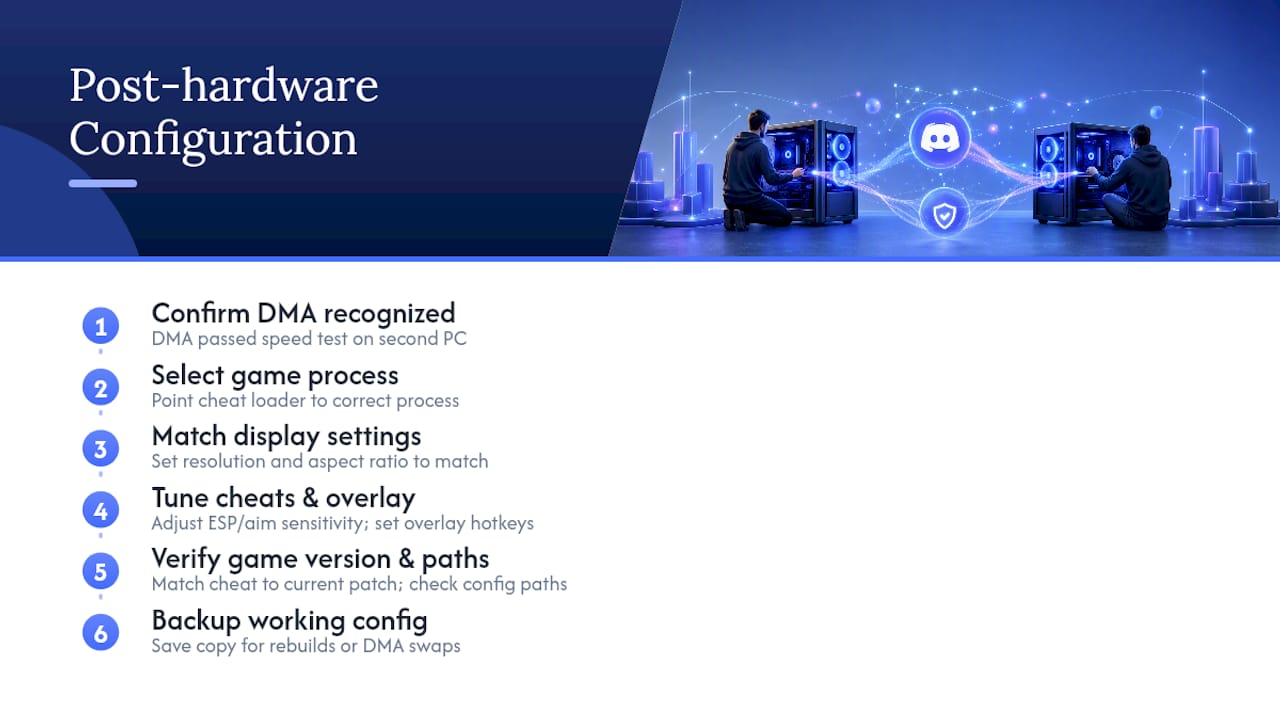
Getting the hardware recognized is only half the job. Once your DMA card passes its speed test, the cheat software itself needs configuration on the Gaming PC side, separate from the driver work you just did on the second PC.
This typically means pointing the cheat loader at the correct game process, setting your resolution and aspect ratio to match in-game settings, and adjusting ESP or aimbot sensitivity to something that doesn't look robotic in a replay. Overlay settings matter too. Many cheats let you toggle visibility hotkeys so nothing displays if you alt-tab or someone glances at your screen during a stream.
Match your cheat's target game version against the current patch. A cheat that was daily-tested against last week's build can behave unpredictably after an unannounced game update, which is exactly why ongoing testing matters more than a one-time detection check. Confirm your config file paths are correct, especially if you moved the install directory during setup.
Save a backup of your working configuration once everything runs clean. If you ever rebuild the second PC or swap DMA cards, having that config on hand saves you from re-tuning every setting from scratch.
What Are the Legal Risks of Using Game Cheats?
Using cheats, spoofers, or DMA hardware in online games almost always violates the target game's terms of service, even where the underlying software itself isn't illegal to own or sell. That distinction trips up a lot of buyers: owning a DMA card is legal in Canada and most jurisdictions, but using it in a game whose EULA prohibits third-party software puts your account, not you personally, at risk of enforcement action by the publisher.
Enforcement almost always means account bans, hardware ID blacklisting, or license revocation, handled entirely by the game's anti-cheat system and publisher, not by any government body. Different titles enforce differently. Some ban on detection alone, others build a case over multiple sessions before acting.
None of this is legal advice, and rules vary by title, region, and platform terms you agree to at install. Read the specific terms of service for any game before using third-party software with it, and understand that ban risk is a real possibility, not a hypothetical one, regardless of how well-tested a given cheat is.
How Do You Test Cheat Functionality After Installation?
Don't jump into ranked matchmaking as your first test. Set up a controlled environment first so you can isolate hardware issues from software issues.
Start in an offline mode or a private/custom match if the game supports one. Load in, open your cheat's menu or overlay, and confirm the hotkey toggles it on and off cleanly. Check that ESP boxes or player outlines track correctly through walls or terrain at a range that matches what the software claims to offer.
Next, test aimbot or aim-assist features against a stationary bot or a friend in a private lobby, adjusting smoothing and FOV settings until movement looks natural rather than snapping instantly to targets. Watch your frame rate during this test. A sudden FPS drop when the cheat activates can point to a DMA speed issue rather than a software bug, which is why the earlier speed test matters so much.
Finally, run one full match in a low-stakes mode, unranked or a casual queue, before trusting the setup in anything competitive. Confirm the overlay stays hidden from screen capture if you stream, and that toggling features on and off during a live match doesn't cause stutters or crashes. If everything holds steady through that match, your setup is verified.
Security Precautions and Risks With DMA Hardware Cheats
DMA hardware carries real risk beyond bans, and most of it is preventable with basic discipline. The single biggest mistake is running drivers or management tools on the same PC you game on. Keeping that software confined to the second PC limits what any anti-cheat scan on your Gaming PC could ever detect, because there's simply nothing suspicious installed there to find.
Firmware trust matters just as much as driver hygiene. Only flash firmware from sources you trust, and keep a version log so you can roll back if a new build behaves erratically. Untrusted or modified firmware from random forum links is a common way DMA cards get bricked or behave unpredictably under load.
Physical security deserves attention too. A kill switch isn't decorative. Use it if you need to instantly cut the card's connection during a session, and never leave a DMA setup running unattended on a network you don't control. Static discharge during reinstalls remains a real hardware risk, so ground yourself every time you open the case, not just the first time.
Finally, treat account separation as a security measure, not just a convenience. A staging Windows profile for HWID work means a failed rewrite doesn't take your main setup down with it.
Why the Two-PC Rule and Live Testing Actually Matter
The two-PC rule isn't paranoia, it's the single biggest lever you control. Confining drivers, flashing tools, and firmware entirely to a second machine means your Gaming PC stays clean of anything an anti-cheat scan could flag, which is precisely why Midnight Market builds every setup guide around that separation. Daily testing catches the game updates that silently break yesterday's working config, and warranty coverage means a defective card doesn't become a dead investment. Live Discord support beats a static PDF every time a real error message doesn't match the script.
— Fonics
Get Live Setup Help and Hardware Warranty Support
Midnight-market runs live setup sessions in Discord, walking you through driver installs, firmware flashing, and speed testing in real time instead of leaving you to interpret a written guide alone. That's the practical edge over generic forums: someone's actually watching your screen share while you flash, not answering a three-day-old thread.
Every DMA hardware purchase includes warranty coverage, so a defective card or a bad flash isn't a dead end. Support tickets and live chat handle both setup questions and warranty claims through the same channel. Before connecting, have your Device Manager screenshot, your card model, and a description of where the process stalled ready to go. It cuts resolution time significantly.
Browse the current DMA card lineup or head to the full store to see supported titles and check live product status before you buy. If you already have hardware in hand, open a live Discord session now and get it running tonight instead of tomorrow.